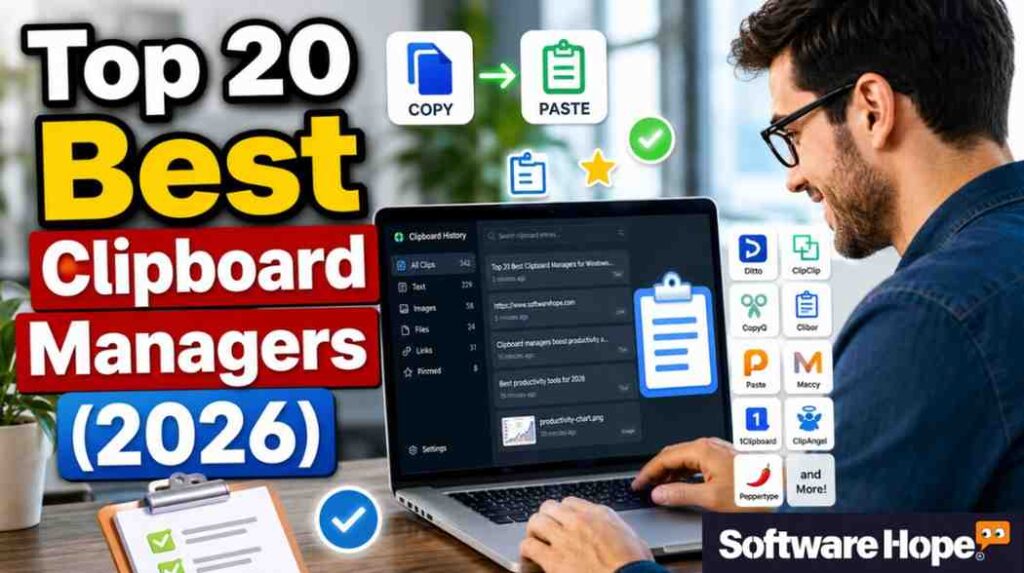
Ever copy something, then copy something else and poof the first thing’s gone forever? Yeah, we’ve all been there. Windows only remembers the last thing you copied, which is kind of a bummer when you are juggling five different bits of text at once. That’s where a good clipboard history tool comes in clutch.
In this article, we’re going through 20 solid clipboard manager options for Windows in 2026. Some are free, some are paid, some are for coders, some are for regular folks who just want to stop retyping the same email over and over. We will cover how to open clipboard tools, how to access clipboard history fast and what makes each one worth a look. Let’s get into it.
Table of Contents
Comparison of Top 20 Clipboard History Managers for Windows in 2026
| Serial | Image | Name | Rating | Pricing | Compatibility | Details Page |
|---|---|---|---|---|---|---|
| 1 |

|
★★★★★ 5.0 |
Free
|
Windows
|
Details | |
| 2 |
|
★★★★★ 5.0 |
Free
|
Windows,macOS,Linux
|
Details | |
| 3 |
|
★★★★★ 5.0 |
Freemium
|
Windows
|
Details | |
| 4 |
|
★★★★★ 4.9 |
Open Source
|
Web Browser
|
Details | |
| 5 |
|
★★★★★ 4.8 |
Freemium
|
Web Browser
|
Details | |
| 6 |
|
★★★★★ 4.8 |
Freemium
|
Windows
|
Details | |
| 7 |
|
★★★★★ 4.8 |
Free
|
Windows
|
Details | |
| 8 |
|
★★★★★ 4.8 |
One-time Purchase
|
Windows
|
Details | |
| 9 |
|
★★★★★ 4.8 |
One-time Purchase
|
Windows
|
Details | |
| 10 |
|
★★★★★ 4.9 |
Freemium
|
Web Browser
|
Details | |
| 11 |
|
★★★★★ 4.9 |
Freemium
|
Windows
|
Details | |
| 12 |
|
★★★★★ 4.8 |
Free
|
Windows
|
Details | |
| 13 |
|
★★★★★ 4.8 |
Open Source
|
Windows
|
Details | |
| 14 |
|
★★★★★ 4.8 |
Free
|
Web Browser
|
Details | |
| 15 |
|
★★★★★ 4.8 |
Free
|
Windows
|
Details | |
| 16 |
|
★★★★★ 4.8 |
Free
|
Windows
|
Details | |
| 17 |
|
★★★★★ 4.8 |
Free
|
Windows
|
Details | |
| 18 |
|
★★★★★ 4.8 |
Free
|
Windows
|
Details | |
| 19 |
|
★★★★★ 4.9 |
Open Source
|
Linux,macOS,Windows
|
Details | |
| 20 |
|
★★★★★ 4.8 |
Free
|
Windows
|
Details |
1. Ditto: Ditto saves your clipboard history so you can quickly find and paste old copied text.
Ditto
Open-source clipboard manager extending standard Windows clipboard history functionality
Ditto is one of the most well-known free options out there, and it’s completely open source too. It basically takes the regular Windows clipboard and gives it superpowers instead of holding just one item. It keeps a running list of everything you have copied, so your clipboard history is always right there when you need it. You will like it if you’re the type who copies a bunch of stuff before pasting any of it.
What makes Ditto special is that it costs nothing, forever, no catch. You can search through old clips, organize them into folders and even sync your clipboard across a few computers on the same network. It’s a bit plain looking, sure, but it gets the job done without slowing your PC down at all.
Key Features
- Unlimited clipboard history storage, saved locally in a lightweight database
- Custom hotkey to pop open your clipboard history instantly, anytime
- Folder-based organization so your clips don’t turn into total chaos
- Supports text, images, and HTML formats without losing formatting
- Optional syncing between multiple PCs on the same network
- Fully portable version you can run off a USB stick, no install needed
Pros & Cons
Pros & Cons
Pros
- It's genuinely free forever, no ads, no premium upsells anywhere in sight
- Being open source means anyone can check the code for sketchy behavior
- Barely uses any system resources, even with thousands of saved clips
- Search function makes digging up an old clip pretty painless
Cons
- The interface looks like it's from another decade, not gonna sugarcoat that
- Windows only, so Mac or Linux folks are out of luck here
- Some of the advanced settings take a little digging to find
Device Compatibility:
Runs on Windows only — XP all the way through Windows 11. No native Mac or Linux build exists, so cross-platform users will need to look elsewhere for those systems.
Pricing:
100% free, always has been. There’s no pro tier, no subscription, nothing hidden behind a paywall. Just download and go.
Customer Support:
There’s no live chat or phone line here — support runs through the GitHub project page and community forums. Response times vary since it’s community-maintained, but the documentation covers most common questions well.
2. CopyQ: CopyQ keeps your clipboard history organized, making it easy to reuse copied text and images.
CopyQ
Advanced open-source clipboard manager with powerful editing, automation and scripting capabilities
CopyQ is basically the clipboard manager for people who like to tinker. It’s free, open source and works across Windows, macOS, and Linux, which is rare for this category of software. Beyond just holding your clipboard history, CopyQ lets you write scripts that react to what you copy — like auto stripping formatting or tagging clips by type.
The scripting side is where CopyQ really pulls ahead. You will see what I mean once you start setting up custom commands want every URL you copy saved to a text file automatically? Easy. It does take a bit of learning if you are not used to that kind of setup, but the payoff for power users is real.
Key Features:
- Fully scriptable clipboard actions using a built-in JavaScript-like engine
- Tab system to keep clips organized by project or category
- Cross-platform support across Windows, macOS, and Linux
- Built-in editor for tweaking clipboard contents before pasting
- Command-line control for automating clipboard tasks
Pros & Cons
Pros & Cons
Pros
- Completely free and open source with zero feature restrictions
- Works the same way across all three major operating systems
- Scripting opens up automation most other tools simply can't touch
- Actively maintained with regular updates on GitHub
Cons
- The interface looks and feels like a developer tool, which it kind of is
- No built-in cloud sync, so you'll need a workaround for that
- Casual users might find the learning curve steeper than expected
Device Compatibility:
Works on Windows 7 through 11, macOS 10.15 and newer, and most major Linux distributions — same interface everywhere, which is nice if you switch machines often.
Pricing:
Free and open source under the GPLv3 license. No trial, no freemium tier, no paid upgrade path at all.
Customer Support:
Support happens through GitHub issues and community discussion boards rather than a formal help desk. It’s not instant, but the community is active and the maintainer responds to bug reports fairly regularly.
3. ClipClip: ClipClip helps you save and search your clipboard history without losing important copied items.
ClipClip organizes your copied items into custom folders. It works like a filing cabinet for everything you copy. It handles images well too, which some clipboard tools kind of fumble. If you are someone who copies a lot of screenshots or graphics alongside text, this one’s worth trying out.
You can also edit clip content right inside ClipClip without pasting it somewhere else first to make changes. That saves a surprising amount of back and forth. It connects with a few productivity add-ons too, which extend what it can do beyond plain clipboard history.
Key Features:
- Folder-based system for sorting clips by project or topic
- Built-in editing tools so you can tweak clips without leaving the app
- Handles both image and text clipboard content smoothly
- Add-on marketplace for extending functionality
- Quick-paste menu accessible through a customizable hotkey
Pros & Cons
Pros & Cons
Pros
- Free to download and use for personal purposes
- Organization system is more intuitive than a lot of competitors
- Editing clips directly saves real time on repetitive tasks
- Decent image handling compared to plain-text-only tools
Cons
- Windows-only, so there's no option for other platforms
- Some add-ons feel like they were bolted on rather than built in
- Interface can feel a little cluttered once you have lots of folders going
Device Compatibility:
Built specifically for Windows and works across recent versions of the OS. There’s no Mac, Linux, or mobile companion app.
Pricing:
The core app is free to use. Some bonus add-ons are available, so it’s worth checking the current add-on store for anything that requires a separate purchase.
Customer Support:
Support is mainly handled through an online help center and email — no live chat currently listed. Response speed seems to depend on how busy their small team is.
4. PasteBar: PasteBar stores your clipboard history so you can paste saved text with just a few clicks.
PasteBar is one of the newer names on this list and it’s already got a following. It’s free, open source and built with modern tools (Tauri and Rust, if you are curious), which makes it fast and light on system resources. You will like it if you want something that feels current instead of like it hasn’t been touched since 2010.
One neat trick PasteBar has is letting you build custom menus with instant-paste actions. So instead of digging through history, you set up shortcuts for the stuff you paste constantly. That’s super helpful if you are a developer pasting the same commands or snippets all day.
Key Features:
- Custom menus with instant-paste shortcuts for frequent clips
- Supports text, images, files, and links in clipboard history
- Local, privacy-friendly storage with no cloud requirement
- Built on a lightweight modern framework for speed
- Available for both Windows and Mac
Pros & Cons
Pros & Cons
Pros
- Completely free with the full feature set unlocked, no catches
- Open source, so the code is out there for anyone to review
- Feels noticeably faster and lighter than older clipboard tools
- Custom menu feature is genuinely different from most competitors
Cons
- Being newer, it doesn't have as large a community yet
- Some users online mention it can feel a bit feature-packed at first
- Linux support isn't as mature as the Windows and Mac versions
Device Compatibility:
Works on both Windows and macOS, with active development happening on GitHub. It’s a newer project, so keep an eye on release notes for platform updates.
Pricing:
Free and open source, with no paid tier currently offered.
Customer Support:
Support runs through GitHub and the developer’s community channels rather than a dedicated help desk. Since it’s a smaller, newer project, replies tend to come from the developer directly.
5. ClipboardFusion: ClipboardFusion cleans and manages your clipboard history to make copying and pasting easier.
ClipboardFusion
Clipboard manager with text scrubbing, C# macros, and secure sync
ClipboardFusion, made by Binary Fortress Software, is built around cleaning up your clipboard as much as storing it. It can strip out weird formatting when you copy from websites or PDFs. Which honestly saves a ton of annoyance if you paste into plain text fields a lot. There’s a free version and a Pro version with clipboard syncing across devices.
Where it gets interesting is the macro system. You can set up rules that trigger automatically, like replacing certain characters or running custom scripts whenever you copy something. It’s a solid pick if you are tired of pasting content that looks completely broken in a different app.
Key Features:
- Automatic formatting removal when copying from any source
- Custom macros that trigger actions on copied text
- Clipboard syncing between devices with the Pro version
- Find-and-replace rules you can apply to clipboard content
- Hotkey and context menu access for quick actions
Pros & Cons
Pros & Cons
Pros
- Free version covers the basics with no time limit at all
- Macro system offers real automation for repetitive clipboard tasks
- Formatting cleanup feature works reliably across different apps
- Lifetime license option instead of a recurring subscription
Cons
- Clipboard syncing and advanced triggers are locked behind Pro
- Interface feels a bit dated compared to newer competitors
- Mobile companion apps get mixed reviews for missing features
Device Compatibility:
Runs on Windows, with companion apps for iOS and Android for syncing purposes. There’s no dedicated macOS desktop version.
Pricing:
The basic version is free to use forever. Pro licenses are a one-time lifetime purchase (bulk discounts are available if you’re buying several), with a 30-day trial of Pro features included in every download.
Customer Support:
Support is available by email through Binary Fortress’s site, along with a documentation section covering setup and macros. No live chat listed at the moment.
6. AceText: AceText stores notes and clipboard history so you can reuse text anytime.
AceText
Powerful Windows clipboard manager and text snippet organizer
AceText leans more into being a text and snippet manager than a pure clipboard history tool, though it covers clipboard duties too. It’s made for writers, researchers, and anyone who reuses text often. It helps organize templates, notes, research snippets, and other copied content. Not gonna lie, it feels more like a mini writing assistant than a basic clipboard tool.
It supports templates for quick replies over email or chat. So you are not retyping the same message for the hundredth time. There’s also RSS feed support built in, which is a weirdly specific but kind of neat extra.
Key Features:
- Template system for reusable email and chat responses
- Organized collections for storing and searching text snippets
- Drag-and-drop text capture straight from web pages
- RSS feed reading and publishing built into the app
- Search across all saved snippets and clips at once
Pros & Cons
Pros & Cons
Pros
- Great for people managing tons of reusable text day to day
- Template system genuinely cuts down repetitive typing
- Search function makes finding old snippets pretty quick
- One-time payment instead of a monthly subscription
Cons
- Free trial is time-limited, then you'll need to buy a license
- Windows only, no Mac or Linux version available
- Feels a bit more complex to set up than a plain clipboard tool
Device Compatibility:
Windows only, supporting recent versions of the OS going back through older releases too.
Pricing:
There’s a free trial period, after which a one-time license is required to keep using it. Check the developer’s site directly for the current price before buying, since license costs can shift over time.
Customer Support:
Support is handled by email, with a three-month money-back guarantee mentioned on the developer’s site. No live chat currently available.
7. ArsClip: ArsClip keeps your clipboard history safe, making it simple to find copied content later.
ArsClip is a no frills freeware clipboard manager that’s been around a good while. It sits quietly in your system tray and keeps track of your recent clips, popping up when you hit the hotkey. There’s nothing flashy here. It’s built for people who just want reliable clipboard history without extra bells and whistles.
By default it stores your most recent clips in memory and moves older ones to a separate cache once that fills up, so you are not stuck scrolling forever. Simple, functional and it’s stayed free the whole time.
Key Features:
- Popup window triggered by hotkey, right-click, or custom triggers
- Automatic caching of older clips once recent storage fills
- Lightweight system tray presence with minimal resource use
- Configurable hotkeys for quick clipboard access
Pros & Cons
Pros & Cons
Pros
- Totally free with no catch or hidden premium tier
- Very lightweight, won't slow down older machines at all
- Simple setup that doesn't require much configuration
- Reliable for basic text and clipboard history needs
Cons
- Interface feels pretty bare-bones by 2026 standards
- Limited to English language support currently
- Not much in the way of advanced organization tools
Device Compatibility:
Windows only. It’s a lightweight utility, so it runs fine even on older hardware.
Pricing:
Completely free, no paid tier or premium version to speak of.
Customer Support:
Support is community and documentation based, available online through the developer’s pages. There’s no dedicated live chat or phone support.
8. Comfort Clipboard Pro: Comfort Clipboard Pro lets you manage your clipboard history with quick access to copied items.
Comfort Clipboard Pro
Advanced Windows clipboard manager with encrypted clipboard history and text editing
If you are the kind of person who likes to tweak every little setting, Comfort Clipboard Pro will probably feel right at home. It gives you plenty of control over your clipboard history. You can decide what gets saved, how long it stays there, organize clips into your own categories, and even lock them with encryption if privacy matters to you. And if you already have other Comfort Software programs on your PC, this one fits in without feeling out of place.
One feature I really like is the separate clipboard banks. Instead of throwing everything into one long list, you can keep your work clipboard history away from your personal clips. It sounds simple, but it’s surprisingly useful when you’re bouncing between different jobs during the day. Finding the right copied item takes a lot less time.
Key Features:
- Multiple clipboard banks for separating different types of content
- Optional password protection for sensitive clipboard data
- Customizable hotkeys for quick access to saved clips
- History filtering by content type or date
Pros & Cons
Pros & Cons
Pros
- Good option for anyone juggling separate work and personal clips
- Security options add peace of mind for sensitive copied text
- Fits well alongside other tools from the same software family
- Detailed customization for how history is stored and displayed
Cons
- Paid license required after the trial period ends
- Interface can feel a little busy with all the extra options
- Some features overlap with the simpler free tools on this list
Device Compatibility:
Windows only, supporting current and recent versions of the operating system.
Pricing:
Offered as trial software with a paid license required for continued use — check the developer’s site for the current rate, since pricing has shifted between versions.
Customer Support:
Support is available through the developer’s website and email, along with documentation for setup and troubleshooting.
9. ClipMate: ClipMate saves your clipboard history so you never lose copied text again.
ClipMate
Windows clipboard manager with advanced history, collections, and text editing
ClipMate has been around since the 90s, believe it or not. It’s still going strong as a dedicated clipboard extender. It’s built for people who copy a serious volume of stuff daily and need real organization folders, search, spell check, even basic print support for saved clips. It’s a paid tool, but it’s stuck around this long for a reason.
One thing that stands out is the multi-monitor screen capture built right in, plus the ability to share clips across multiple PCs. If you have got a heavy duty copy paste workflow, ClipMate’s been doing this longer than most.
Key Features:
- Stores unlimited clips organized into searchable collections
- Multi-monitor screen capture built directly into the app
- Combine, edit, and spell-check clipboard content before pasting
- Portable version that runs straight off a USB drive
- Virtual collections showing clips from today, this week, or this month
Pros & Cons
Pros & Cons
Pros
- Decades of refinement mean it's genuinely stable and reliable
- Great for heavy users managing thousands of saved clips
- Portable mode is handy for working across different machines
- One-time license rather than an ongoing subscription
Cons
- 30-day trial before you need to buy a license to keep going
- Interface shows its age a bit compared to newer competitors
- No official Mac or Linux version at all
Device Compatibility:
Windows only, running on XP through more recent versions of the OS.
Pricing:
There’s a 30-day free trial, and a single-user license runs $34.95, with a household license covering up to five computers available for $79.95. Prices can change, so it’s worth double-checking on the official site before buying.
Customer Support:
Support is handled by email and phone during US business hours, along with an online FAQ covering licensing and common issues.
10. PhraseExpress: PhraseExpress uses clipboard history to help you paste saved text faster.
PhraseExpress
Professional text expansion, autotext, and template automation software
PhraseExpress does more than save your clipboard history. It also helps with text expansion, so you type a lot less. You can create small shortcuts that turn into full sentences, templates, or even form fields. It’s really handy if you keep sending the same messages or filling out the same forms.
It’s free for personal, non-commercial use, which is great if you just want it at home. If you use it for work, though, you’ll need a paid license. There’s also an enterprise version with SQL Server support, so teams can share templates across the whole company.
Key Features:
- Text expansion shortcuts that trigger full phrases or templates
- Macro system supporting date calculations and conditional logic
- Autocomplete suggestions that appear as you type
- Team sharing setup through SQL Server for businesses
- Medical transcription module aimed at healthcare use cases
Pros & Cons
Pros & Cons
Pros
- Free for personal use makes it accessible for casual users
- Text expansion goes well beyond basic clipboard history
- One-time license option instead of a forced subscription
- Long track record — the company's been around over 20 years
Cons
- Commercial use requires a paid license after the trial period
- Team setup involves some IT work to configure properly
- Mac version lags behind the Windows version in features
Device Compatibility:
Available for Windows and macOS, plus a mobile companion app, though the Windows version gets the most complete feature set.
Pricing:
Free for personal, non-commercial use. Paid licenses for commercial use start at roughly $80–100 as a one-time purchase, with volume discounts for multiple licenses — pricing has varied by edition, so check current rates before buying.
Customer Support:
Support is available through the company’s website and email, with an FAQ section covering licensing, SQL Server setup, and general troubleshooting.
11. Spartan Multi Clipboard: Spartan Multi Clipboard keeps your clipboard history organized for quick and easy pasting.
Spartan Multi Clipboard
Windows clipboard manager with screen capture, encryption, and OneDrive synchronization
Spartan Multi Clipboard keeps things pretty simple. It gives you multiple clipboard slots you can fill and paste from independently, without a giant running history to sort through. If you just want a handful of separate “clipboard slots” instead of one long scrollable list, this fits that need nicely.
It’s a straightforward little tool, no bells and whistles. Which honestly makes it easy to pick up right away. You will like it if bigger clipboard managers feel like overkill for what you actually need day to day.
Key Features:
- Multiple independent clipboard slots you fill manually
- Simple hotkey access to switch between slots
- Lightweight footprint with minimal setup required
- No complicated menus or settings to dig through
Pros & Cons
Pros & Cons
Pros
- Super easy to learn since there's barely a learning curve
- Doesn't hog system resources running in the background
- Good fit for simple, repetitive copy-paste tasks
- Free to use without needing to register anything
Cons
- No searchable history like the bigger tools on this list
- Limited to a fixed number of slots rather than unlimited history
- Feature set is pretty basic if you need more advanced tools
Device Compatibility:
Windows only, and it’s light enough to run comfortably on older or lower-spec machines.
Pricing:
Free to use, with no premium version currently offered.
Customer Support:
Support is limited to whatever documentation or contact info is listed on the download page — there’s no dedicated support team or live chat.
12. Clipboard Magic: Clipboard Magic stores your clipboard history so your copied text is always ready.
Clipboard Magic
Free Windows clipboard manager for storing and reusing plain text clips
Clipboard Magic is another lightweight utility aimed at giving you more than one clipboard slot without a steep learning curve. It’s built for quick swapping between a few saved items rather than managing a huge scrollable history. Which some people honestly prefer since it’s less overwhelming.
It’s a simple tray-based tool — set your hotkeys, copy a few things and switch between them fast. Not much more to it than that, but sometimes that’s exactly what you want.
Key Features:
- Several clipboard slots accessible through quick hotkeys
- Runs quietly in the system tray without much overhead
- Minimal setup — works right after installation
- Basic text and image support for saved clips
Pros & Cons
Pros & Cons
Pros
- Simple to understand right out of the gate
- Doesn't require much configuration to get going
- Lightweight enough not to slow down your system
- Free to download and use
Cons
- No advanced search across a long clipboard history
- Feature set is limited compared to full-blown managers
- Interface feels pretty basic and utilitarian
Device Compatibility:
Windows only, and it runs fine even on older hardware given how lightweight it is.
Pricing:
Free to use, with no paid upgrade currently offered.
Customer Support:
Support is minimal — mostly documentation and contact info on the download page rather than a dedicated help desk.
13. ClipAngel: ClipAngel makes clipboard history easy to search and reuse whenever you need it.
ClipAngel
Open-source Windows clipboard manager with advanced clipboard history and search
ClipAngel is a free, open-source tool that helps you manage your clipboard history. It puts a big focus on searchable history and encryption, so it’s a great pick if you’re worried about keeping copied data safe. It’s not as well known as Ditto or CopyQ. But a lot of people still like it because it offers a few things those tools don’t.
It can save text, images, and even files in your clipboard history. Everything is stored in a database, so it’s pretty easy to search for clips you copied weeks or even months ago. If you’re looking for how to access clipboard data safely or want a simple way to open clipboard history, the built-in encryption is a nice extra that many free clipboard tools leave out.
Key Features:
- Database-backed clipboard history with fast search
- Optional encryption for sensitive clipboard entries
- Supports text, images, and file clips
- Customizable hotkeys and tray behavior
Pros & Cons
Pros & Cons
Pros
- Free and open source with a genuinely capable feature set
- Encryption option stands out compared to similar free tools
- Search through large clip histories feels quick and responsive
- Actively developed with regular updates on GitHub
Cons
- Smaller community than the bigger-name alternatives
- Documentation can be a bit sparse in places
- Windows only, so no Mac or Linux version
Device Compatibility:
Windows only, supporting recent versions of the operating system.
Pricing:
Free and open source, with no paid tier.
Customer Support:
Support runs through the GitHub repository and issue tracker rather than a formal help desk.
14. 1Clipboard: 1Clipboard syncs your clipboard history across devices for easy access anywhere.
1Clipboard
Free cross-platform clipboard manager with Google Drive synchronization
1Clipboard focuses on syncing your clipboard across devices using a cloud account. Which sets it apart from the mostly local only tools on this list. If you regularly bounce between a work laptop and a home PC and want the same clipboard history following you around. This is built exactly for that.
It’s open source too, which is reassuring given that cloud synced clipboard data naturally raises a few privacy questions. Worth noting that anything synced through the cloud carries a bit more risk than a purely local tool. So it’s worth thinking about what you’re comfortable syncing.
Key Features:
- Cloud sync across multiple devices under one account
- Cross-platform support beyond just Windows
- Searchable clipboard history with tagging options
- Open source codebase available for review
Pros & Cons
Pros & Cons
Pros
- Syncing across devices is genuinely convenient for multi-PC setups
- Being open source adds some trust around how data's handled
- Cross-platform reach beyond just Windows users
- Free to use without a required subscription
Cons
- Cloud syncing means your clips pass through a server somewhere
- Development activity has slowed compared to a few years back
- Not ideal for copying sensitive information given the cloud sync
Device Compatibility:
Available for Windows, with support extending to other platforms too, making it one of the more cross-platform options on this list.
Pricing:
Free to use, with no premium tier currently offered.
Customer Support:
Support is handled through the project’s GitHub page and community channels rather than a dedicated support team.
15. M8 Free Clipboard: M8 Free Clipboard saves your clipboard history so you can find old copies fast.
M8 Free Clipboard
Free Windows multi-clipboard manager that stores clipboard history, captures screenshots, and fills repetitive forms
M8 Free Clipboard pretty much does what it says on the tin. It’s a free clipboard history tool — nothing fancy, no clutter getting in your way. It’s really made for folks who just want to grab something they copied a minute or two ago, without digging through some huge list of features to find the right button.
Here’s the thing, though: there’s not a whole lot of info out there on how to open clipboard tools like this one, or how to access clipboard history with it in general. So it works best for casual, everyday use. If you need heavy customization or team features, this probably isn’t your pick.
Key Features:
- Basic clipboard history accessible through a hotkey
- Simple list view of recently copied items
- Lightweight installation with minimal system impact
- No account or sign-up required to use it
Pros & Cons
Pros & Cons
Pros
- Free to use without any catches
- Quick to install and start using right away
- Doesn't demand much from your system resources
- Good fit for casual, occasional clipboard needs
Cons
- Feature set is pretty limited compared to other tools here
- Less documentation and community support available online
- Not ideal if you need advanced organization or search
Device Compatibility:
Windows only, and it’s light enough for basically any modern PC to run without issue.
Pricing:
Free to use.
Customer Support:
Support options are limited — mostly whatever’s listed on the download page, without a dedicated help channel.
16. MultiClipBoardSlots: MultiClipBoardSlots keeps your clipboard history organized with multiple saved clipboard slots.
MultiClipBoardSlots
Lightweight Windows desktop utility extending the system clipboard with up to 10 customizable memory slots
MultiClipBoardSlots does what it says on the tin. It gives you several clipboard “slots” you can fill and access independently, similar in spirit to Spartan Multi Clipboard and Clipboard Magic. It’s aimed squarely at people who want a fixed set of reusable clips rather than a long scrolling history to search through.
It’s a pretty niche, minimal tool, so don’t expect a ton of extras. But for the specific job of holding onto a handful of frequently used snippets, it does the job without any fuss.
Key Features:
- Fixed number of clipboard slots for quick access
- Simple hotkey-based switching between slots
- Minimal interface with straightforward setup
- Low system resource usage
Pros & Cons
Pros & Cons
Pros
- Extremely simple to pick up with basically no learning curve
- Doesn't slow your system down at all
- Free to use with no hidden costs
- Good for repetitive tasks using the same few snippets
Cons
- No searchable history for older or one-off clips
- Limited slots mean it's not built for heavy clipboard users
- Interface and features are pretty minimal overall
Device Compatibility:
Windows only, and light enough to run on basically any hardware.
Pricing:
Free to use, with no paid version currently offered.
Customer Support:
Support is limited to whatever documentation accompanies the download — there’s no dedicated support line.
17. CLCL: CLCL saves your clipboard history so you can reuse copied text without any trouble.
CLCL
Lightweight Windows clipboard caching utility with custom templates, plugins, and menu hotkey support
CLCL is a small, free Japanese developed clipboard utility. It been floating around for years and picked up a following among users who want something extremely lightweight. It stores clipboard history and lets you set up templates too, along with support for plugins if you want to extend what it can do.
It’s a bit old school in presentation, but it’s stable and does exactly what it needs to without demanding anything from your system. If you want something small and free that just works, CLCL fits that bill.
Key Features:
- Lightweight clipboard history with template support
- Plugin system for extending functionality
- Minimal system footprint and fast startup
- Customizable hotkeys for quick access
Pros & Cons
Pros & Cons
Pros
- Completely free with a long track record of stability
- Extremely lightweight, barely noticeable running in the background
- Plugin support adds flexibility for advanced users
- Simple enough for beginners to pick up quickly
Cons
- Interface and documentation feel dated, some of it isn't in English
- Development has slowed down over recent years
- Lacks some of the polish found in newer competitors
Device Compatibility:
Windows only, and it’s light enough to run comfortably on older machines.
Pricing:
Free to use, with no paid tier.
Customer Support:
Support is community-based through forums and whatever documentation exists — there’s no formal support team.
18. Save.me: Save.me helps organize your clipboard history and keeps your copied content easy to find.
Save.me
Portable Windows clipboard utility that automatically records text, images, files, folders and URLs across reboot sessions
Save.me takes a slightly different path from most clipboard tools. Yes, it keeps your clipboard history, but the main idea is helping you save things you will actually want later. Think of a useful link, a recipe, a phone number, or a few lines of text you don’t want to copy again. Once you save them, they are easy to find the next time you need them. If you have ever searched for how to open clipboard, you’ll probably like having everything stored in one spot instead of digging through recent copies.
It isn’t one of the big names, and that’s easy to notice. The feature list is fairly small and there isn’t a huge community around it. But that can also make it feel less overwhelming. If you just need a simple way to clipboard open, how to access clipboard, and keep important snippets without a lot of extra buttons or settings, Save.me gets the job done.
Key Features:
- Long-term snippet saving beyond typical clipboard history
- Simple tagging or categorization for saved items
- Quick hotkey access to saved snippets
- Lightweight footprint on system resources
Pros & Cons
Pros & Cons
Pros
- Good for saving things you want to keep around long-term
- Simple enough that there's not much to learn upfront
- Doesn't take up much space or system resources
- Free to use for basic functionality
Cons
- Smaller community means fewer guides or troubleshooting tips online
- Feature set is limited compared to more established tools
- Less frequent updates compared to actively developed alternatives
Device Compatibility:
Windows only, and lightweight enough to run on most systems without issue.
Pricing:
Free to use for its core features.
Customer Support:
Support is limited, mostly through whatever contact info or documentation is provided with the download.
19. Yanky: Yanky stores your clipboard history so you can quickly reuse copied text whenever you need it.
yanky.nvim
Improved Yank and Put functionalities for Neovim with yank ring and persistence support
Yanky is a lightweight tool that adds clipboard history without getting in your way. It saves the things you copy, lets you bring them back with simple keyboard shortcuts, and skips all the extra features that many people never use. If you only need a quick way to find something you copied a little while ago, it feels easy to use from the start.
You won’t hear about Yanky as often as the bigger clipboard managers, and that’s fine. It focuses on one job and sticks to it. If you’ve ever wondered how to open clipboard history or how to access clipboard items after copying something new, this tool makes the process a lot simpler. It’s a handy option when you want clipboard open access without installing a bulky app.
Key Features:
- Basic clipboard history with quick hotkey retrieval
- Minimal setup required after installation
- Small system footprint
- Straightforward list-based interface
Pros & Cons
Pros & Cons
Pros
- Free and simple, with nothing complicated to figure out
- Very light on system resources
- Quick to install and start using immediately
- Fine for casual, everyday clipboard needs
Cons
- Limited feature set compared to bigger clipboard managers
- Not much documentation or community support online
- No advanced search or organization tools
Device Compatibility:
Windows only, and light enough for any modern or older PC.
Pricing:
Free to use.
Customer Support:
Support is minimal, mostly whatever’s listed with the download itself.
20. ClipboardZanager: ClipboardZanager helps manage your clipboard history and keeps copied items neat and organized.
ClipboardZanager
Smart open source Windows clipboard manager with history search and OneDrive or Dropbox sync
ClipboardZanager is one of those simple Windows tools that just does its job. It saves your clipboard history as you copy things, and you can bring it up anytime with a keyboard shortcut. There’s no cloud sync, no encryption, and no long list of extra features. It sticks to the basics, which is exactly what some people want.
If bigger clipboard apps have felt a bit too complicated, this one may be a better fit. It gives you a quick way to check your clipboard history without digging through menus or changing lots of settings. When you need how to access clipboard items fast, ClipboardZanager keeps everything easy and out of the way.
Key Features:
- Simple clipboard history accessible via hotkey
- Lightweight system tray presence
- Basic text and image clip support
- Minimal configuration required
Pros & Cons
Pros & Cons
Pros
- Free to use with no premium version to worry about
- Lightweight enough not to bog down your system
- Easy to set up and start using right away
- Good fit for straightforward, everyday clipboard needs
Cons
- Lacks advanced search across long clipboard histories
- Smaller community means less available support online
- Feature set is fairly basic compared to full-featured tools
Device Compatibility:
Windows only, and lightweight enough to run on basically any system.
Pricing:
Free to use.
Customer Support:
Support is limited to documentation provided alongside the download, without a dedicated support channel.
Latest Post
10 Best Enterprise Project Management Software in 2026
Vijay Datt is a website developer, software expert, and SEO specialist. He writes about the latest software, graphic design tools, and SEO strategies. With expertise in web development and image creation, he helps businesses grow online. His articles provide valuable insights to enhance digital success.